

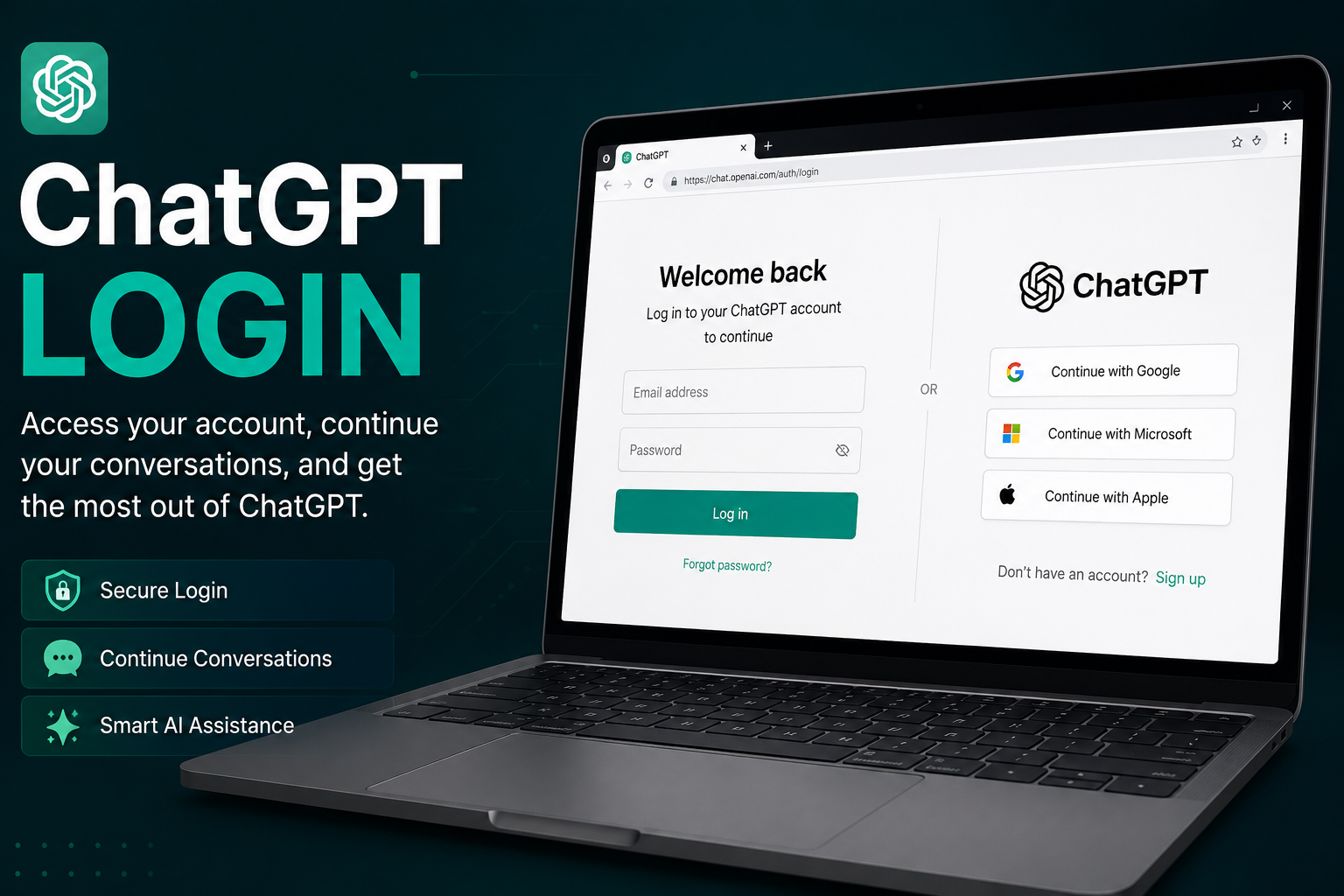
Looking for chat gtp login information? If you already have a ChatGPT account, signing in is usually quick. Open ChatGPT, select Log in, and use the same sign-in method you used when creating your account.
You can sign in with an email and password or, depending on your account, use Google, Microsoft, Apple, or an organization's SSO. Some eligible accounts can also use a passkey for passwordless authentication.
If you're having trouble accessing your account, don't worry. This guide explains the current ChatGPT login process, password recovery, verification problems, common errors, and practical fixes.
How to Log In to ChatGPT
The basic ChatGPT login process is straightforward.
Step 1: Open ChatGPT
Go to the official ChatGPT website and select Log in.
Step 2: Enter Your Account Information
Enter the email address or other information requested on the sign-in screen and continue.
Step 3: Choose Your Original Sign-In Method
Depending on how your account was created, you may see options such as:
Email and password
Continue with Google
Continue with Microsoft
Continue with Apple
Organization SSO
Passkey, if previously configured
Using the correct authentication method is important. For example, if your account was created with Continue with Google, trying to access it with an unrelated password-based account can lead to authentication errors.
Step 4: Complete Verification
For some logins, OpenAI may request an additional verification step. This can include an email one-time password or a mobile approval request, particularly when you're signing in from a new or unrecognized device.
Once verification is complete, you should be taken to your ChatGPT account.
ChatGPT Login Methods Compared
Different users may have different authentication options. Here's a quick comparison:
OpenAI's current authentication documentation lists username/password, Google/Microsoft/Apple social authentication, and SSO as supported authentication methods.
ChatGPT Login With Google, Microsoft, or Apple
Social login can make account access easier, but it's important to remember which provider you originally used.
For example, suppose you created your account by selecting Continue with Google. Later, you enter the same email address and try to create a password-based login. You may encounter an authentication-method error rather than accessing the account you expected.
Apple users should pay particular attention to Hide My Email. When enabled, the account may be associated with an Apple private-relay email address instead of your normal email address. In that situation, continuing with the same Apple ID is the safest way to access the original account.
Don't Have an Account? How to Sign Up
If you've never created a ChatGPT account, choose Sign up instead of Log in.
Follow the registration instructions shown by ChatGPT and select an available authentication method.
However, an account isn't always required just to try ChatGPT. OpenAI currently says ChatGPT can be accessed without creating an account in supported countries. Logged-out users have fewer capabilities, and conversations aren't saved to chat history after the session ends.
Login vs. Sign Up
ChatGPT Login on Phone and Computer
You can access ChatGPT from supported browsers and official apps.
ChatGPT Login on a PC or Mac
Open ChatGPT in your browser, select Log in, and complete the authentication process.
If you're already signed in on another device, don't assume that your browser automatically has access to the same session. You may need to authenticate again.
ChatGPT Login on Android or iPhone
Open the ChatGPT app or use a supported mobile browser. Select the login option and use your normal authentication method.
If a verification request appears on your phone, follow the instructions shown in the app. OpenAI may use mobile approval as an additional login-verification method.
Forgot Your ChatGPT Password?
If you use email and password authentication and can't remember your password, you can reset it.
Open the ChatGPT login page, enter your email address or phone number as requested, continue to the password screen, and select Forgot password? Then follow the instructions in the password-reset email.
Password Reset Email Not Arriving?
Check these things first:
Look in your spam or junk folder.
Confirm you're checking the correct email account.
Make sure the email address was entered correctly.
Request another reset email.
If you originally used Google, Microsoft, or Apple, try that provider instead.
If your account was created through social authentication, you may not have a separate OpenAI password to reset.
ChatGPT Login Not Working? Try These Fixes
A login problem doesn't necessarily mean your account is broken. Browser settings, authentication methods, VPNs, extensions, network restrictions, and temporary service problems can all interfere with sign-in.
1. Use the Correct Authentication Method
This is one of the most important fixes.
If you originally registered with Google, Microsoft, Apple, or SSO, try that same method first.
If you're unsure, OpenAI recommends trying the authentication methods you may have originally used, including password, Google, Microsoft, and Apple.
2. Try an Incognito Window
Open a private or incognito browser window and try signing in again.
This can bypass problematic cached data and browser extensions.
3. Clear Your Cache and Cookies
Old cookies or corrupted cached files can interfere with authentication.
Clear the relevant browser data and restart the browser before attempting another login.
4. Try Another Browser
If ChatGPT login fails in Chrome, for example, try another supported browser.
This helps determine whether the problem is browser-specific.
5. Disable Problematic Extensions
Temporarily disable extensions that modify webpages or block scripts, such as:
Ad blockers
Privacy extensions
Script blockers
Content filters
OpenAI specifically recommends disabling extensions when they interfere with login or verification.
6. Turn Off Your VPN or Proxy
VPNs and proxies can sometimes trigger additional security checks or interfere with Cloudflare verification.
If you're seeing a “Checking your browser” loop, temporarily disable your VPN or proxy and try again.
7. Try a Different Network
For example, if login doesn't work on workplace Wi-Fi, try mobile data.
This is particularly useful when a corporate or managed network is blocking part of the authentication process.
8. Check for a Service Problem
If everything worked previously and suddenly stops working, check OpenAI's service status before changing lots of browser settings. OpenAI recommends checking its status information when generic login errors persist.
9. Wait Before Repeated Login Attempts
If you receive a “suspicious login behavior” message, repeatedly attempting to sign in can make the situation worse.
OpenAI recommends clearing cache and cookies, changing networks, disabling VPNs, and waiting before trying again.
10. Contact OpenAI Support
If you've tried the standard troubleshooting steps and still can't access your account, contact OpenAI Support through the Help Center.
When reporting the problem, provide the exact error message and useful information about your browser, device, sign-in method, and the steps you've already tried. Never send your password or one-time verification codes.
Common ChatGPT Login Errors
The following table can help you identify the likely cause of a login problem quickly.
These troubleshooting approaches are based on OpenAI's current login and authentication guidance.
Why Is ChatGPT Asking Me to Verify My Login?
Additional verification is a security measure designed to make unauthorized access more difficult.
You may be asked to verify a login when:
You're using a new device.
You're signing in from an unusual location.
A security check is triggered.
You're making certain sensitive account changes.
Depending on your account, verification may involve an email OTP or a push notification in the ChatGPT mobile app. If you receive a login request that you didn't initiate, deny it rather than approving it.
If a verification code arrives late, use the most recent code rather than an older one. Also check spam or quarantine folders.
Can You Log In to ChatGPT With a Passkey?
Yes, eligible users can configure a passkey for their OpenAI account.
A passkey can provide passwordless sign-in using the security capabilities of your device. To configure one, OpenAI currently directs users to Settings → Security → Passkeys → Add passkey.
After a passkey is configured, it can become the default sign-in method after you enter your email. If you can't use the passkey, OpenAI provides a Try another method option where available.
ChatGPT Login for Work or School Accounts
Business and organizational users may encounter SSO, or single sign-on.
If your organization has enforced SSO for its verified domain, you may need to authenticate through your company's identity provider rather than using a personal password or social-login button.
For example, an employee might enter their company email and then be redirected to the organization's Microsoft Entra ID or another identity provider.
If you receive an error such as “require_sso_login,” the solution is usually to return to the sign-in page and use the organization's SSO option. If that doesn't work, your IT administrator may need to check your workspace access.
How to Keep Your ChatGPT Account Secure
Logging in successfully is only part of account security.
Consider these good practices:
Never share your password or verification codes.
Don't approve login requests you didn't initiate.
Use a strong available authentication method.
Enable additional security features where appropriate.
Avoid entering credentials on suspicious websites.
Review active sessions if you suspect unauthorized access.
OpenAI currently provides an Active Sessions area that can show recent sessions and trusted devices. Depending on account configuration, users can log out of individual sessions or all sessions.
If you notice an unfamiliar session, securing the account quickly is more important than simply logging back in.
What If You Still Can't Access Your Account?
Start with the simplest possibilities:
Forgot your password?
Use the password-reset process.
Used Google, Microsoft, or Apple?
Use the same provider.
Seeing a browser verification loop?
Disable VPNs and extensions, allow cookies and JavaScript, and try another browser or network.
Getting a suspicious-login warning?
Stop repeated attempts, change networks, disable VPNs, and wait before trying again.
Account suspended or deactivated?
Check messages from OpenAI and contact support if you believe the restriction is incorrect.
For work accounts, SSO or workspace configuration may require assistance from your organization's administrator.
Frequently Asked Questions
What is the ChatGPT login page?
The current ChatGPT service is available at chatgpt.com. Existing users can select Log in and authenticate using the method associated with their account.
Can I log in to ChatGPT with Google?
Yes. Google is one of the supported social authentication methods. If your account was created using Google, use Continue with Google to access it.
Can I log in to ChatGPT with Microsoft?
Yes. Microsoft is a supported social authentication option. Use the Microsoft account associated with your ChatGPT account.
What should I do if I forgot my ChatGPT password?
Select Log in, enter your email address or phone number, continue to the password screen, and select Forgot password? Follow the instructions in the password-reset email. If you registered through Google, Microsoft, or Apple, use that provider instead because you may not have an OpenAI password.
Why can't I log in to ChatGPT?
Common causes include using the wrong authentication method, browser cache or cookies, extensions, VPNs, network restrictions, verification problems, or a temporary service issue. Try incognito mode, another browser or network, and the original sign-in method first.
Can I use ChatGPT without logging in?
In supported countries, OpenAI currently allows users to try ChatGPT without creating an account. However, logged-out use has limitations, including reduced conversation persistence. Creating or logging into an account provides access to features such as saved chat history.
Is a ChatGPT passkey available?
Eligible users can add a passkey from Settings → Security → Passkeys. Once configured, a passkey can be used for passwordless authentication.
Conclusion
The ChatGPT login process is usually simple, but authentication-method mismatches and browser or network problems can make it confusing.
The most important rule is to use the sign-in method associated with your account. If that doesn't work, try incognito mode, clear your cookies and cache, disable extensions or VPNs, and test another browser or network.
For account-specific restrictions, SSO problems, or persistent access issues, use the official OpenAI Help Center rather than relying on outdated third-party login instructions.
Leave a Reply